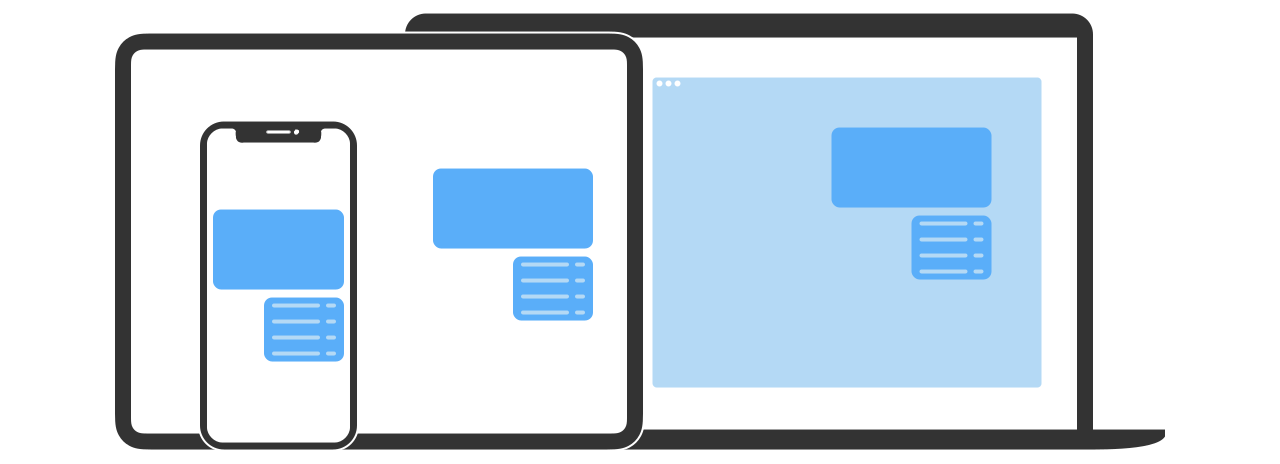
The drive for consistency across apps, platforms, and devices impacts iOS 13 in many ways.
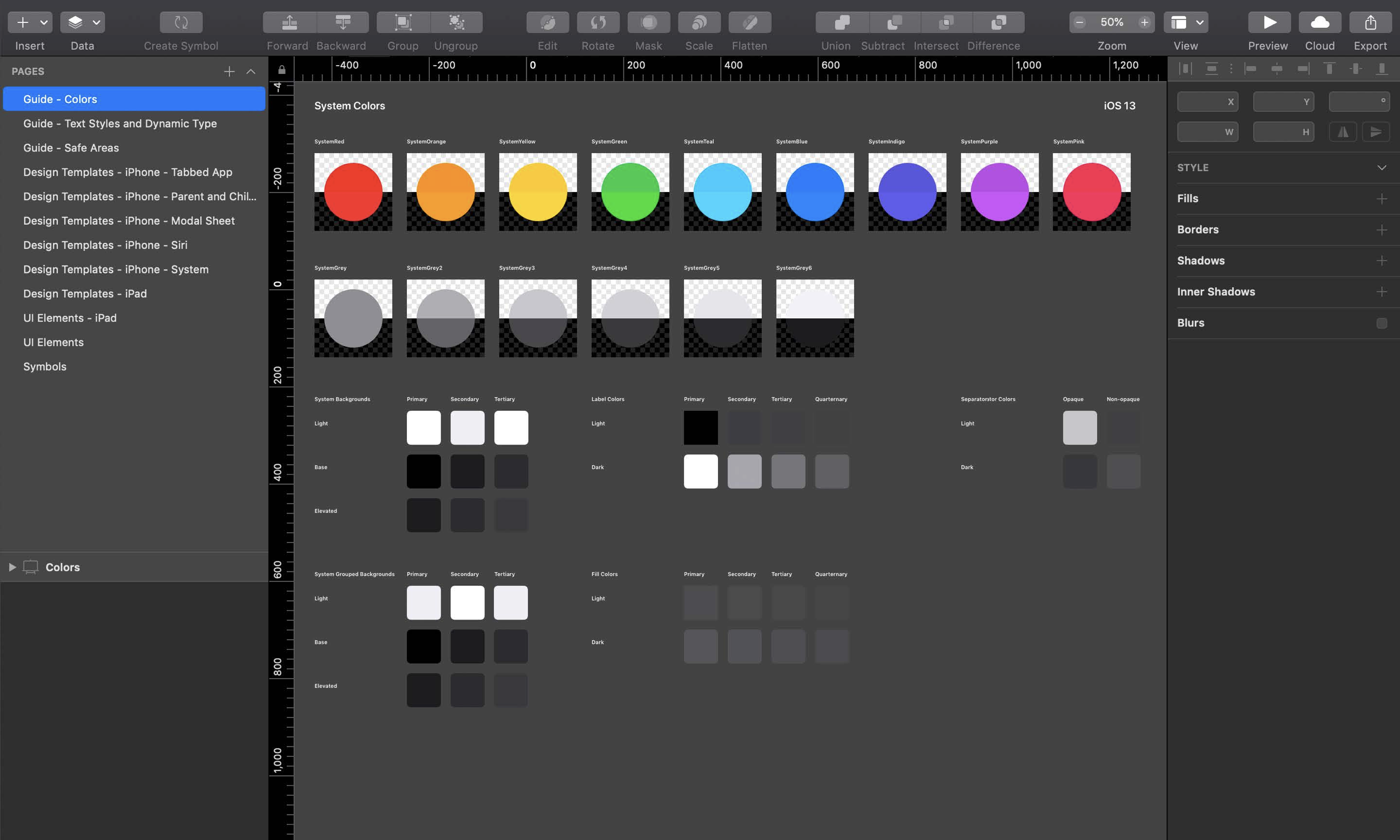
The new iOS 13 Design System helps Apple and third parties build apps consistent with one another. SF Symbols are perhaps the most important part of the iOS 13 Design System, they're a set of 1500+ icons free for any app to use, as a result, you won't have to re-learn what the common archive, directions, or delete icons look like when you use a new app.
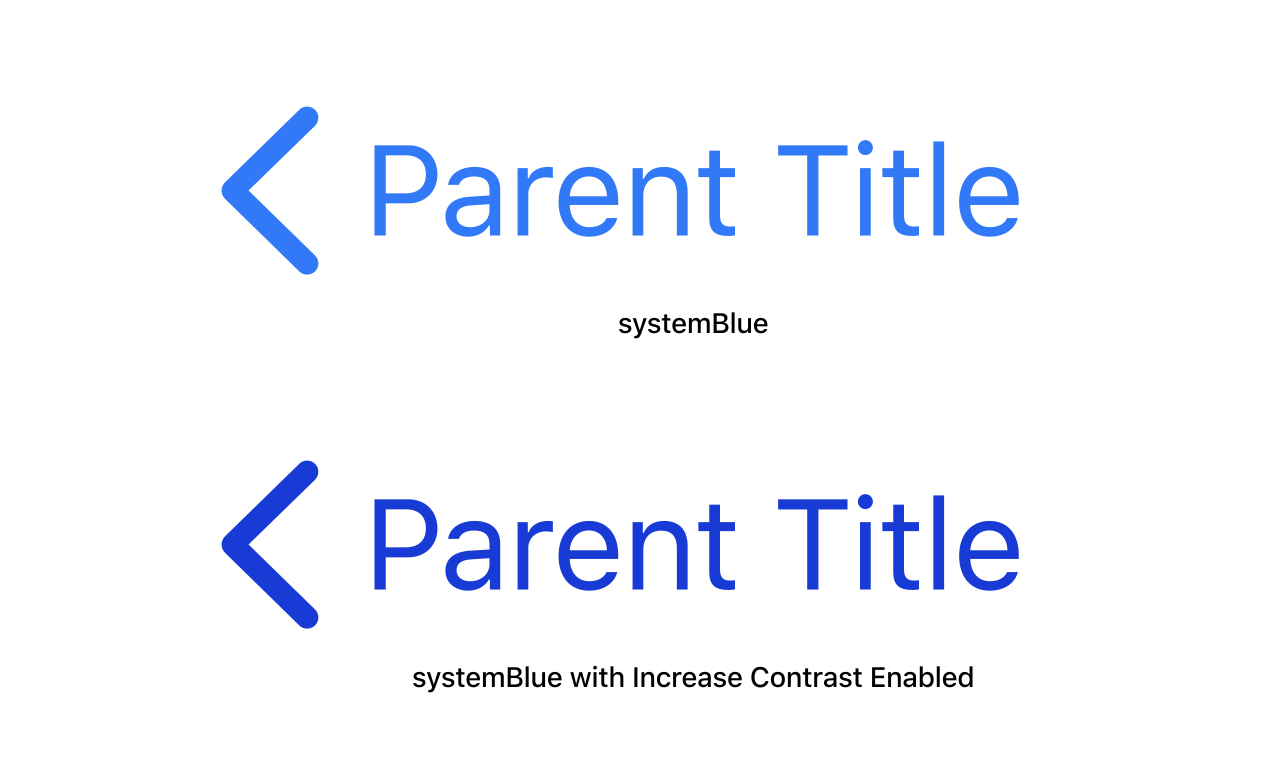
As with many other built-in Apple technologies, the new Design System colours, materials, fonts, and SF Symbols automatically adapt to dozens of accessibility settings, so you don't have to work harder to build the accessible apps your users expect.
Contextual Menus
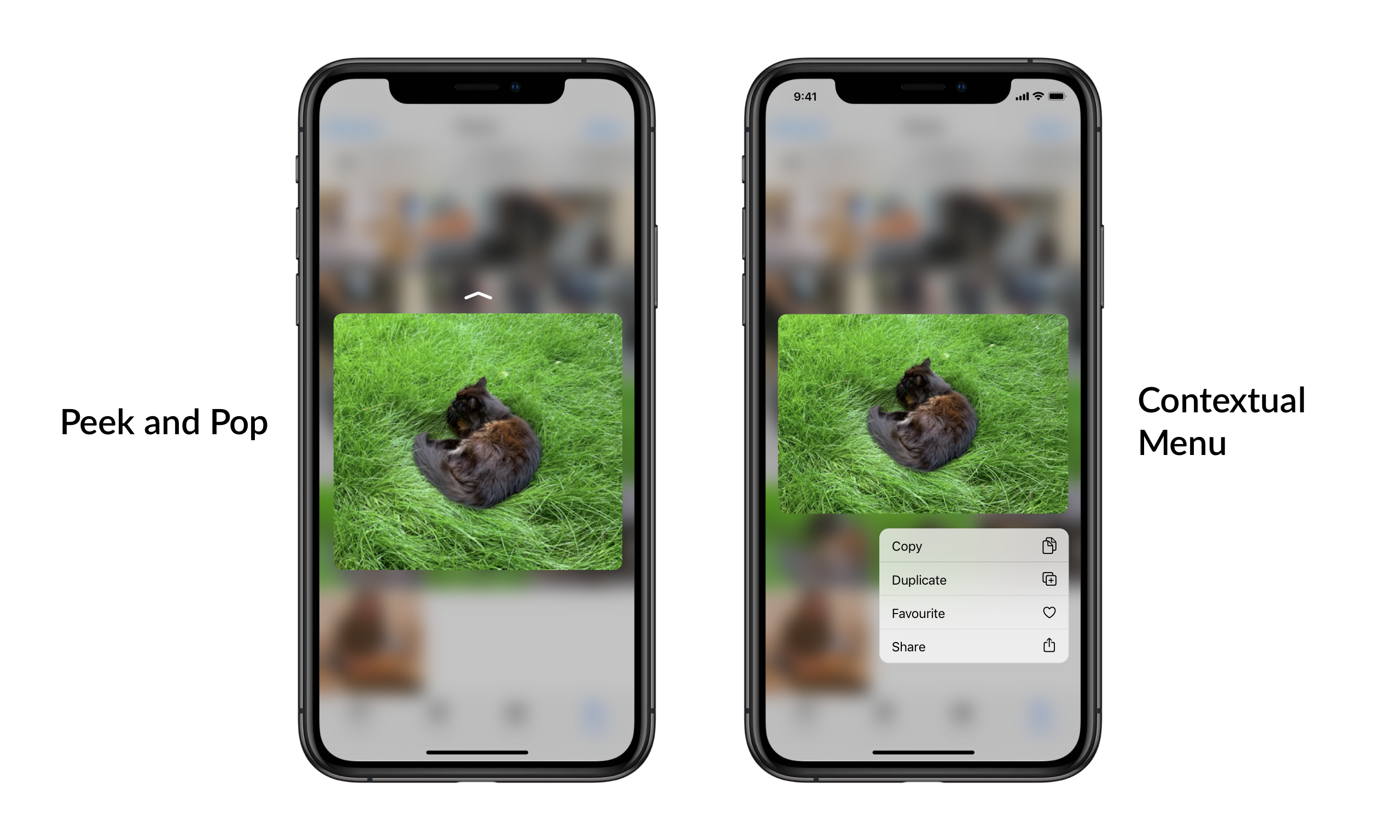
Contextual Menus are new in iOS 13, they're a touch-screen friendly version of the macOS contextual menus, with a layout that improves upon Peek & Pop by showing actions alongside content previews.
Contextual menus are an accelerator, something advanced users (20%) can take advantage of to speed up their workflow and should not be the way most users (80%) use your app.
By using a long-press gesture instead of 3D Touch for their invocation, Contextual Menus are available on iOS, iPadOS, and tvOS devices. On 3D Touch-enabled devices, applying extra pressure shortens the duration of the long-press gesture.
As with macOS, contextual menu actions now support child actions and dividers. Outside the Mac (except for Catalyst), each action may have an associated icon.
Pros and Cons
Pros
Cross-platform availability is both a pro and a requirement. Catalyst apps must aim to present the same feature-set when running on iOS (touch) and Mac (pointer), and contextual menus had to work on iPhones without 3D Touch alongside those that have it. That constraint shapes most of the trade-offs that follow, and it's worth holding in mind before reading them as critique.
Actions discoverability is another pro. Previously with Peek & Pop, users who didn't think of swiping up weren't aware of the extra functionality. The same was true of the horizontal swiping that activated one of two actions with a quick gesture. Contextual menus surface those actions visibly alongside the content preview, which lifts the floor for everyone, especially the 80% of users who weren't reaching them before.
Capability has grown too. Child actions, dividers, and per-action icons (outside the Mac, except for Catalyst) make it possible to express more from a single invocation than Peek & Pop allowed.
Cons
Efficiency has been compromised in favour of cross-platform availability and actions discoverability, this is the first con.
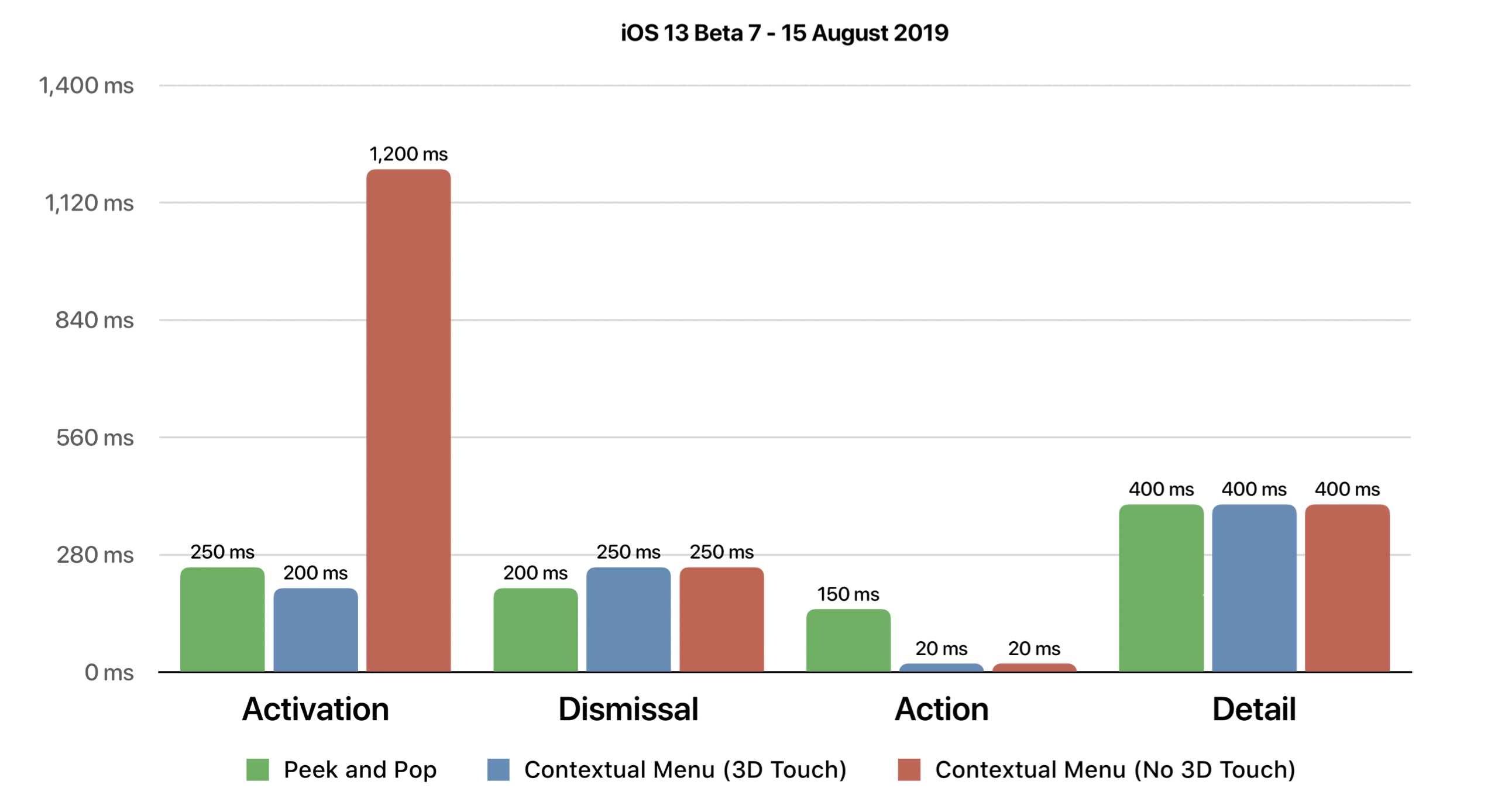
Both Peek & Pop as well as Contextual Menus allow for: 1. invocation, 2. dismissal, 3. accessing content detail, 4. activating actions.
In Peek and Pop (3D Touch), 1. previewing content is done in 250ms, 2. dismissal in 200ms, 3. accessing content detail in 400ms, 4. And performing an action after previewing in 150ms.
Measured by analysing a screen recording.
The equivalent without 3D Touch takes 1. 300ms, 2. 500ms, 3. 1000ms, and 4. 20ms. Actions are immediately accessible after previewing.
Contextual Menus are slower not just because they rely on long-pressing, but also because switching from previewing to any other action requires users to physical raise, re-orient, and lower their fingers to then perform a tap or swipe gesture.
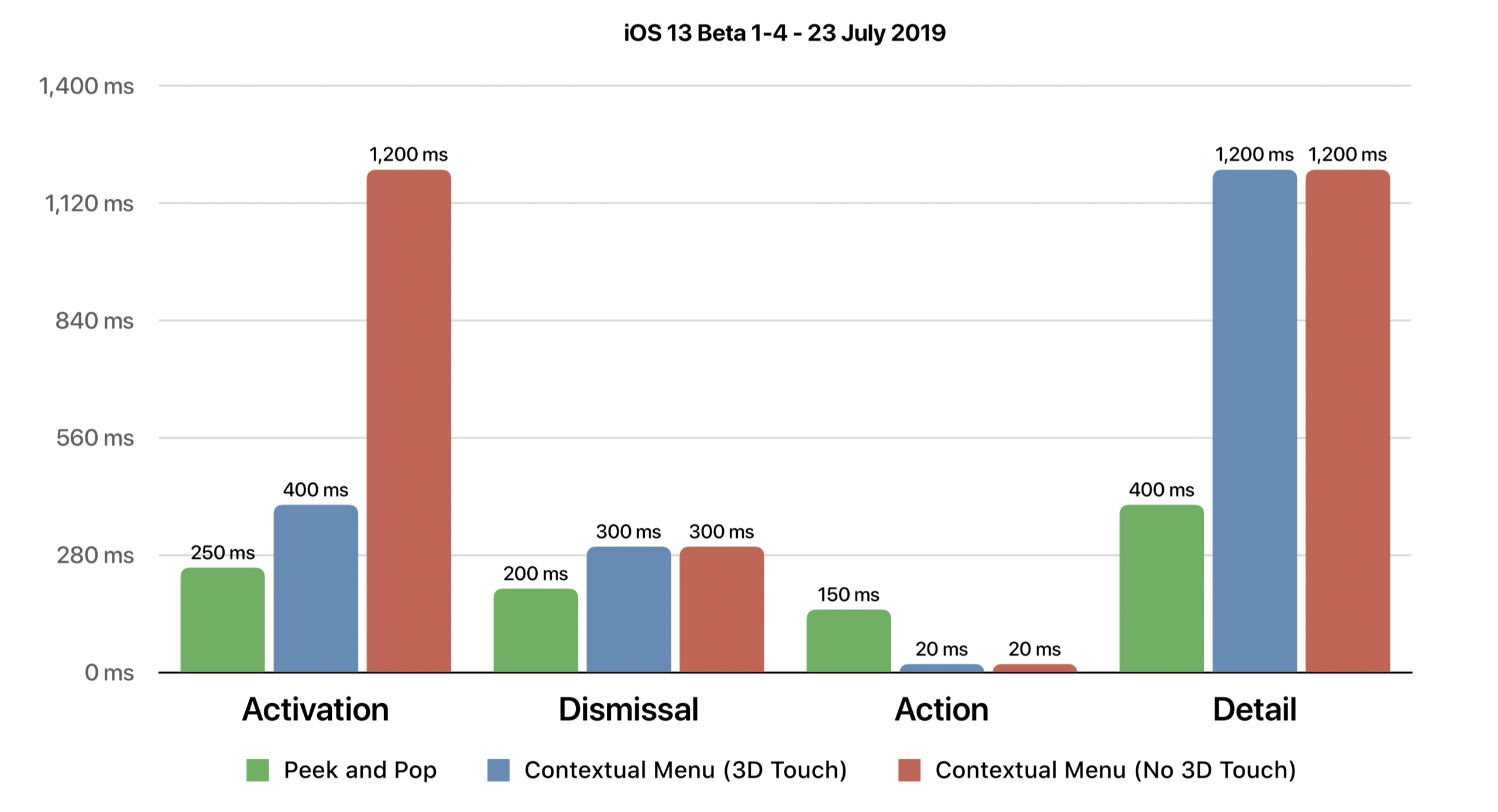
Animations are not only slower, but more complex. For example, accessing content detail with Peek & Pop used to directly transition from Peek to Pop by enlarging and fading the preview into the actual content. With Contextual Menus, the dismissal animation is followed by the standard right-to-left push slide animation, adding a second beat where there used to be one.
What this does well, before the next con: the new layout makes actions visible the moment the menu opens, which removes a discoverability problem the previous design had. The trade is between speed for the 20% who knew the gestures and visibility for the 80% who didn't. Reasonable people can disagree on which side of that trade to optimise for, and on a phone family that no longer assumes 3D Touch, the team's choice is defensible. The cons below are about how the new design could be tuned, not whether the trade was wrong to make.
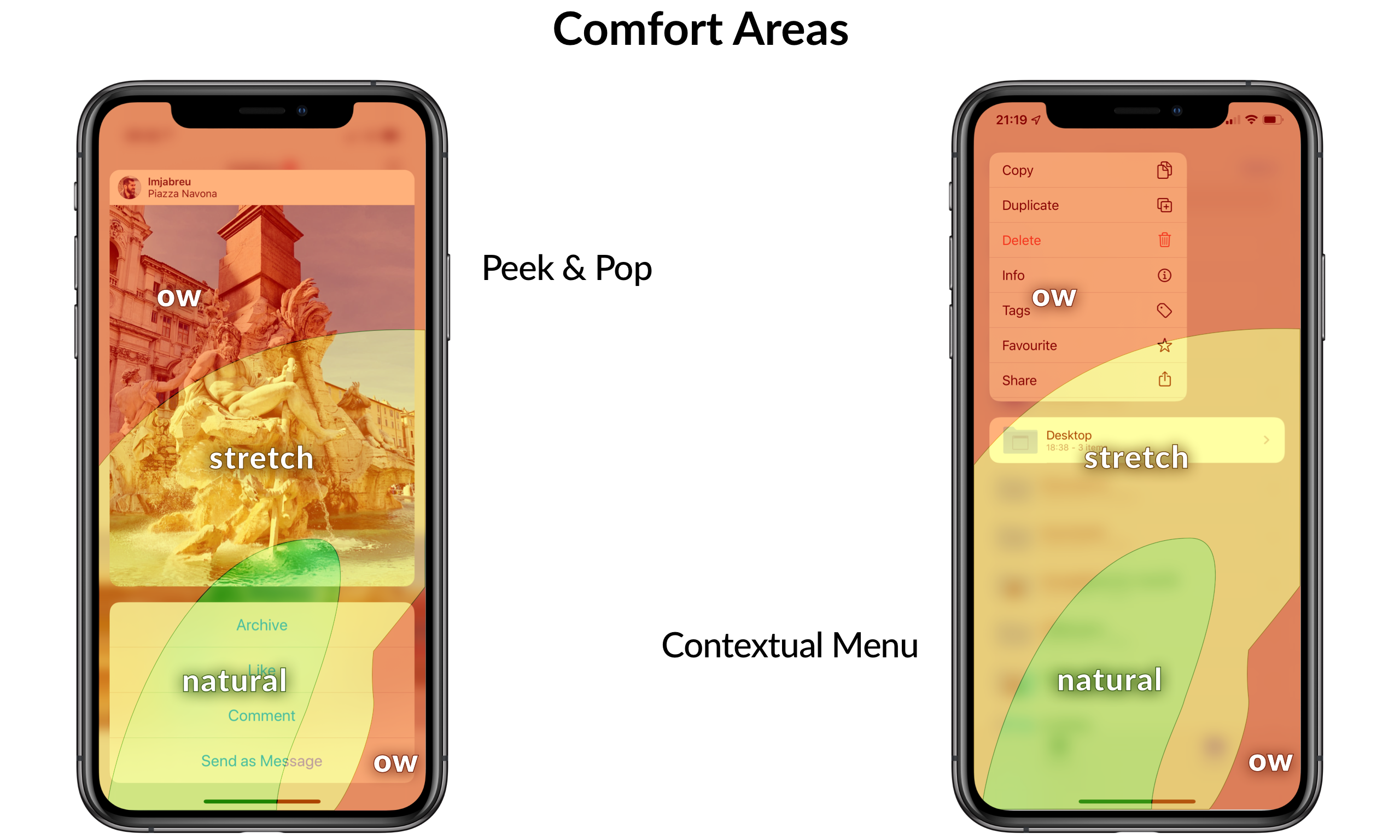
Ergonomics have degraded. The new actions list no longer spans the whole width of the screen, something contextual actions on iOS have always done (think activity sheets, action sheets AKA share sheets). Full-width buttons can be tapped as comfortably by either left or right-handed people, because they intersect on the comfort areas for both orientations.
However, with Contextual Menus, if the content is on the left half of the screen, the menu will show up on that side, and vice-versa. This means actions don't always overlap comfort areas, depending on the user's dexterity or location of the content.
The height of each action is also below the comfortable 44pt (or even 56pt) that Apple uses throughout iOS.

The final con: reading the actions list is harder.
Our eyes work best if they don't need to move much when reading content. This is why when you look at the iOS (or Android) Settings app, icons are right next to where the text label starts, so you can quickly jump between them without moving your eyes too much.
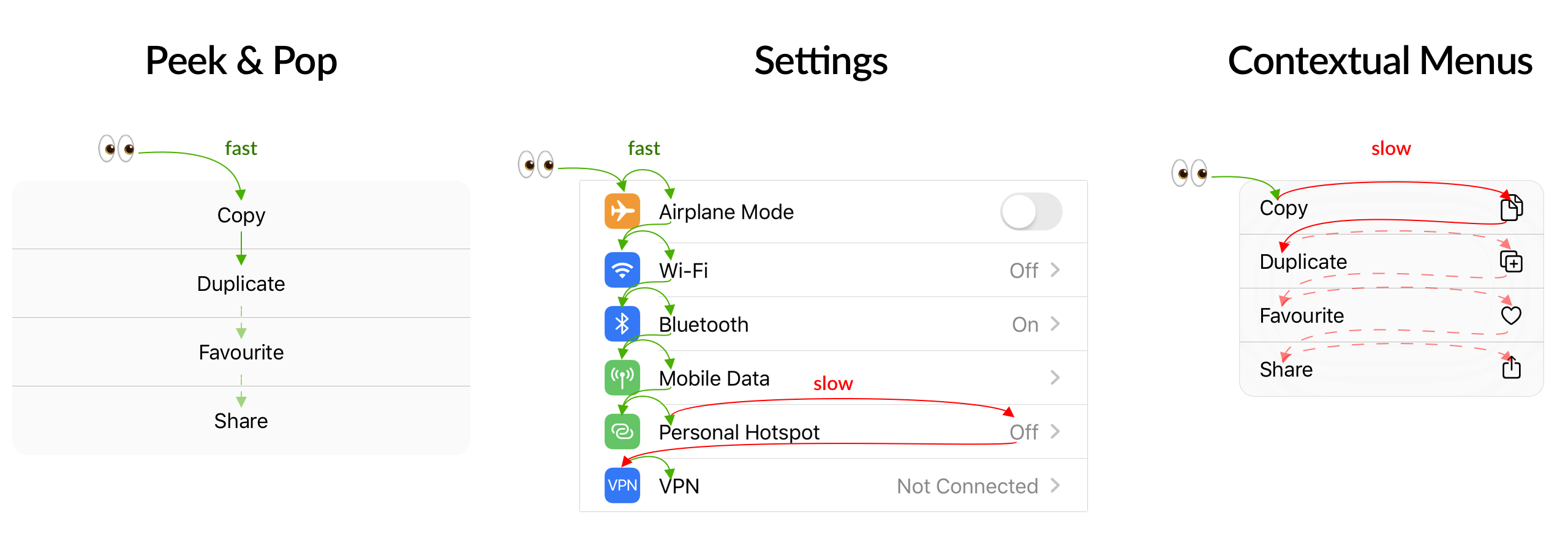
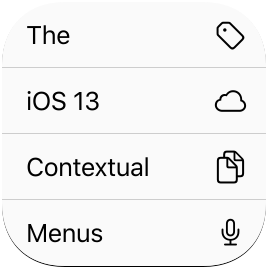
With iOS 13, Contextual Menu actions display their icons on the opposite side of the text label. This means you can't quickly jump between icons and text labels as you scan the list, without looking at completely opposite edges of the screen. This is also an issue present in the actions list of the new Activity Sheet AKA Share Sheet.
Suggestions
The teams have done a great job making Contextual Menus available across platforms, more easily discoverable, and more capable through child actions and grouping. The suggestions below assume the cross-platform and no-3D-Touch constraints can flex slightly through accessibility settings or progressive enhancement, rather than asking the team to reverse the trade they made. They're the kinds of refinements I'd be curious to discuss with whoever owns this surface area.
Efficiency
On 3D Touch-enabled devices with iOS 13, pressure is currently limited to speeding up the invocation and shortening the long-press gesture.
To improve upon this, Apple could re-introduce:
- Dismissal through finger raise;
- Swipe up actions access;
- "Pop" through increased pressure.
It's understandable that Apple wants to start getting people used to not having 3D Touch, not only because of future iPhone updates, but also when accessing Contextual Menus across currently-owned devices. I would recommend for 3D Touch enhancements to be available via Accessibility settings, disabled by default, so the default experience matches across devices and the accelerator is opt-in for advanced users on capable hardware.
Point #2, "Swipe up actions access", would not remove the benefit of increased actions visibility, since that comes from the new layout that displays actions alongside the content preview.
This would complicate interaction by requiring users to perform a gesture to fix the actions in place. The gesture is negligible in terms of effort (cognitive, motor), especially when compared to the new clipboard gestures (undo/redo, cut/copy/paste).
Contextual Menus are an advanced feature that only 20% will use on touch-enabled devices. Given that, animation or other methods (layout, icons) of up-skilling users are appropriate.
Ergonomics
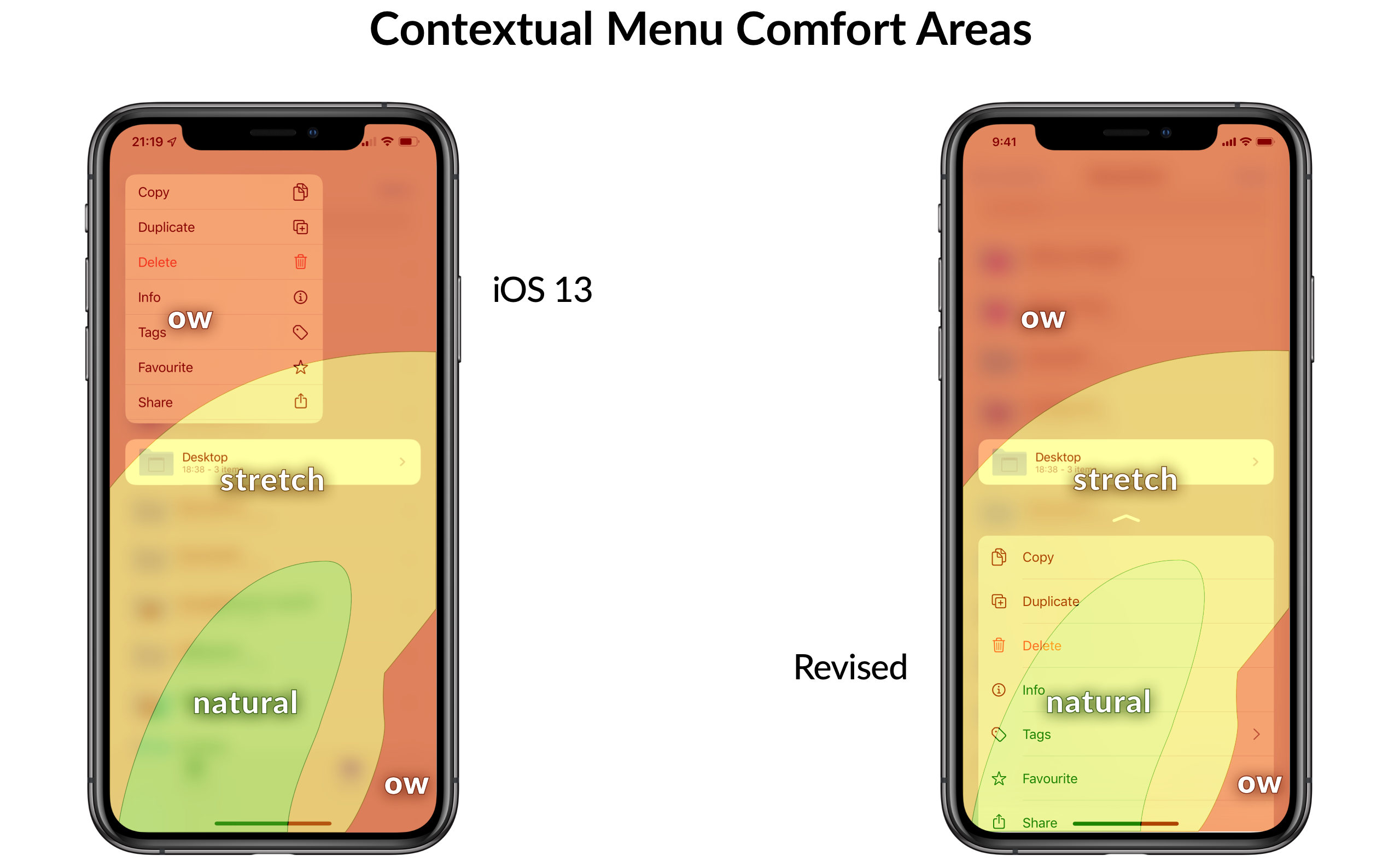
Actions in Contextual Menus no longer span across the full screen width.
Certain screen areas are easier to tap than others.
Generally-speaking, the bottom of the screen is easier to tap for everyone, on iPhones of all sizes. If you're left-handed then the bottom-right will be easier to reach with your thumb, and vice-versa for right-hand users.
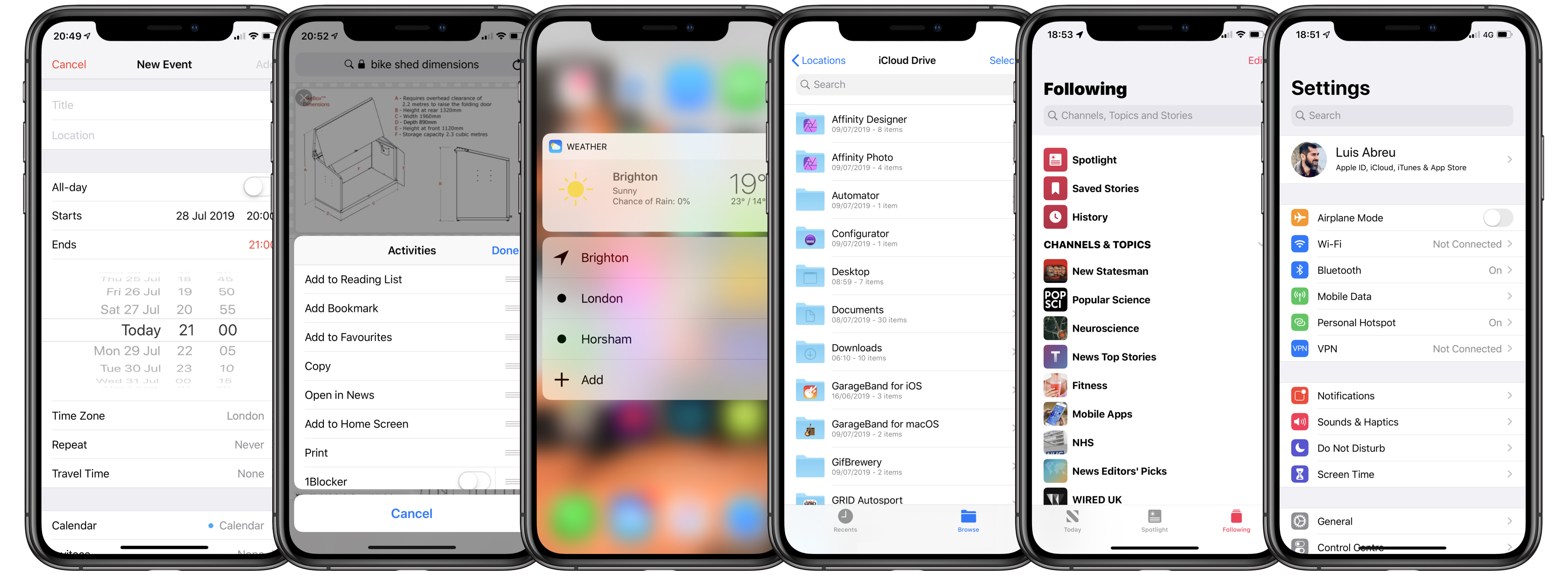
To ensure comfortable use for all users, iOS allows going back by swiping from the bottom edge, and it had until now presented option lists and pickers spanning the full screen width.
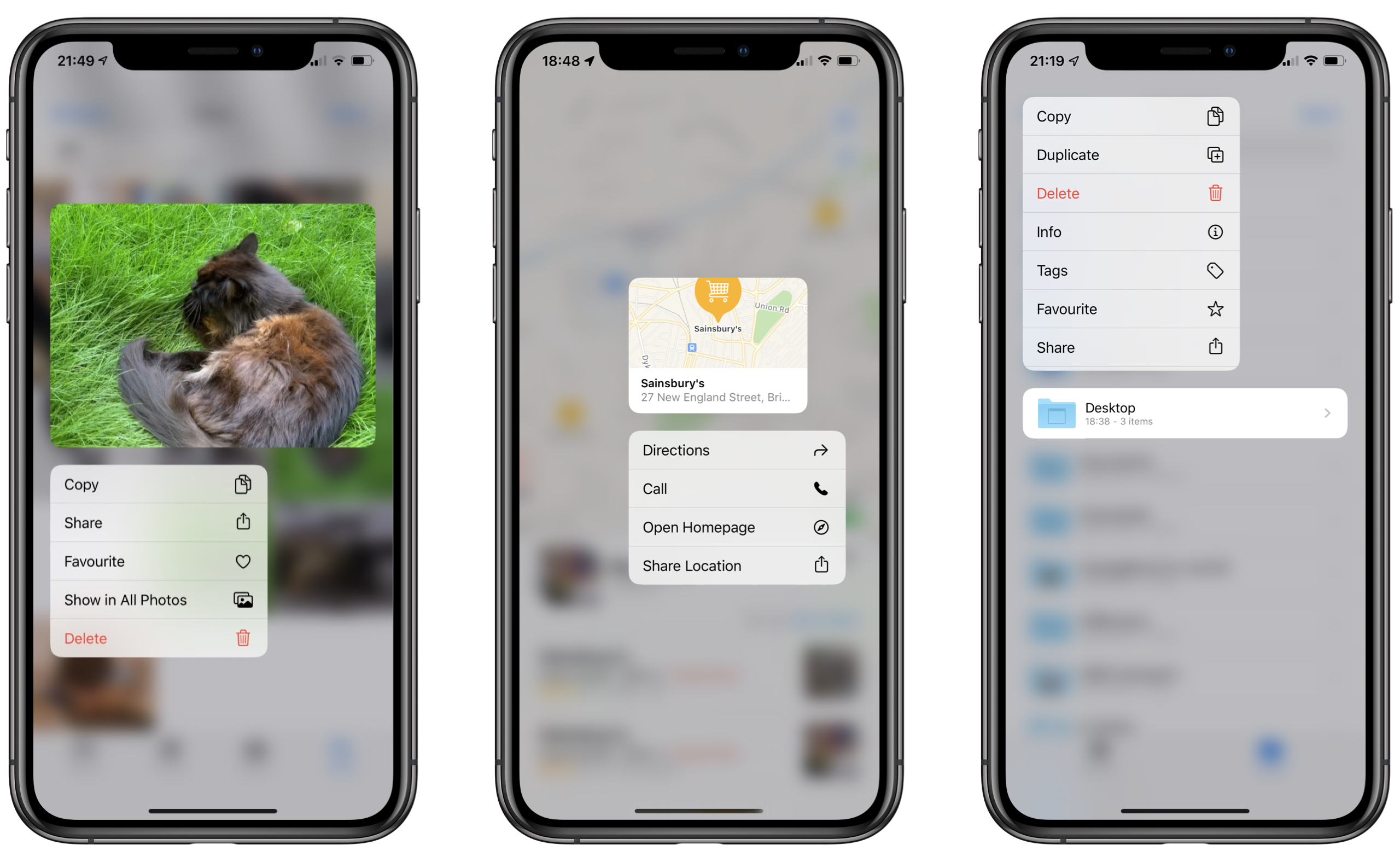
With Contextual Menus, Actions are presented on the left side of the screen by default, and sometimes on the right side if the tapped content doesn't span the whole screen width (e.g. a photo on right column of a grid).
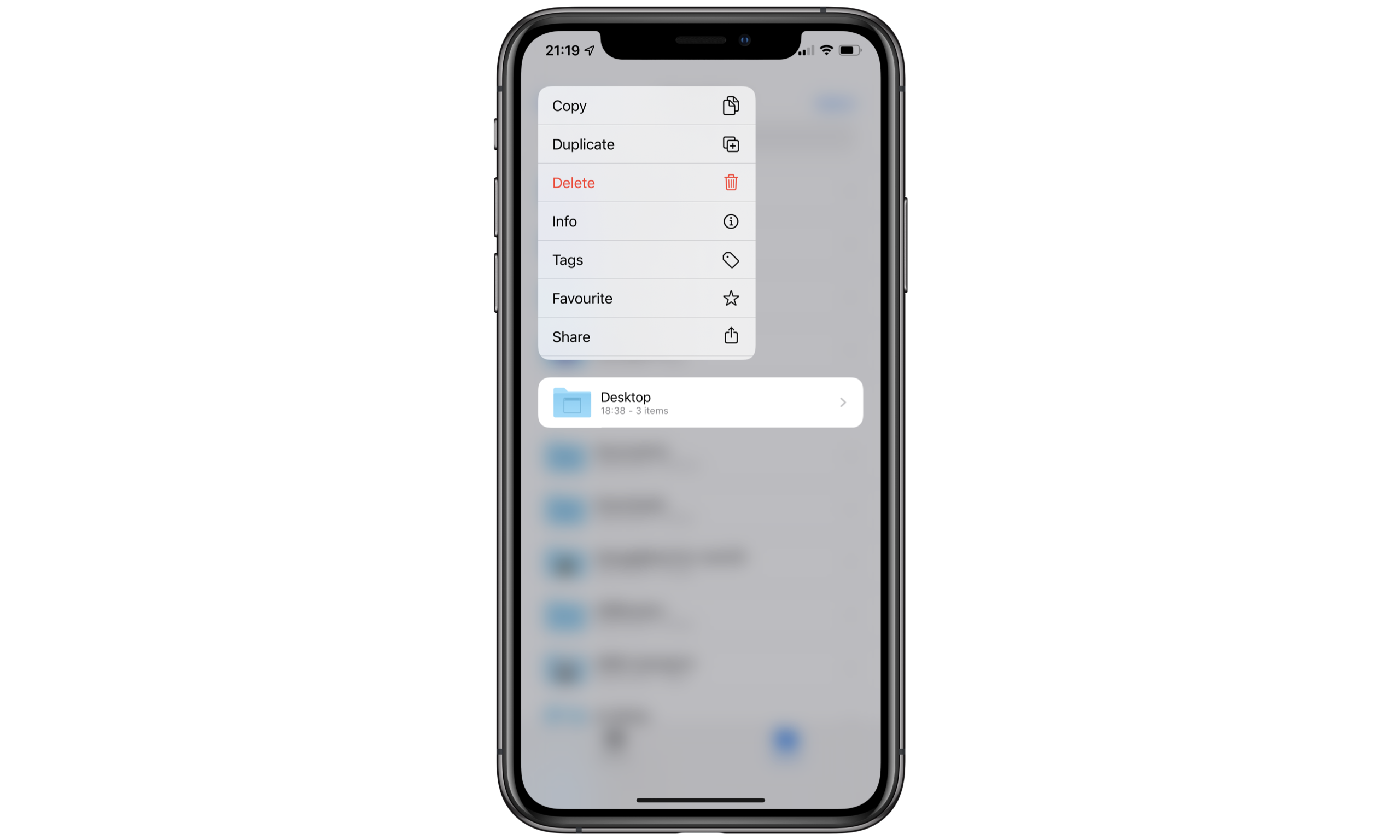
Sometimes action lists are even displayed on the top area of the screen.
As we've seen, this inconsistent positioning means neither left- nor right-hand users have the most comfortable experience when using contextual menus.
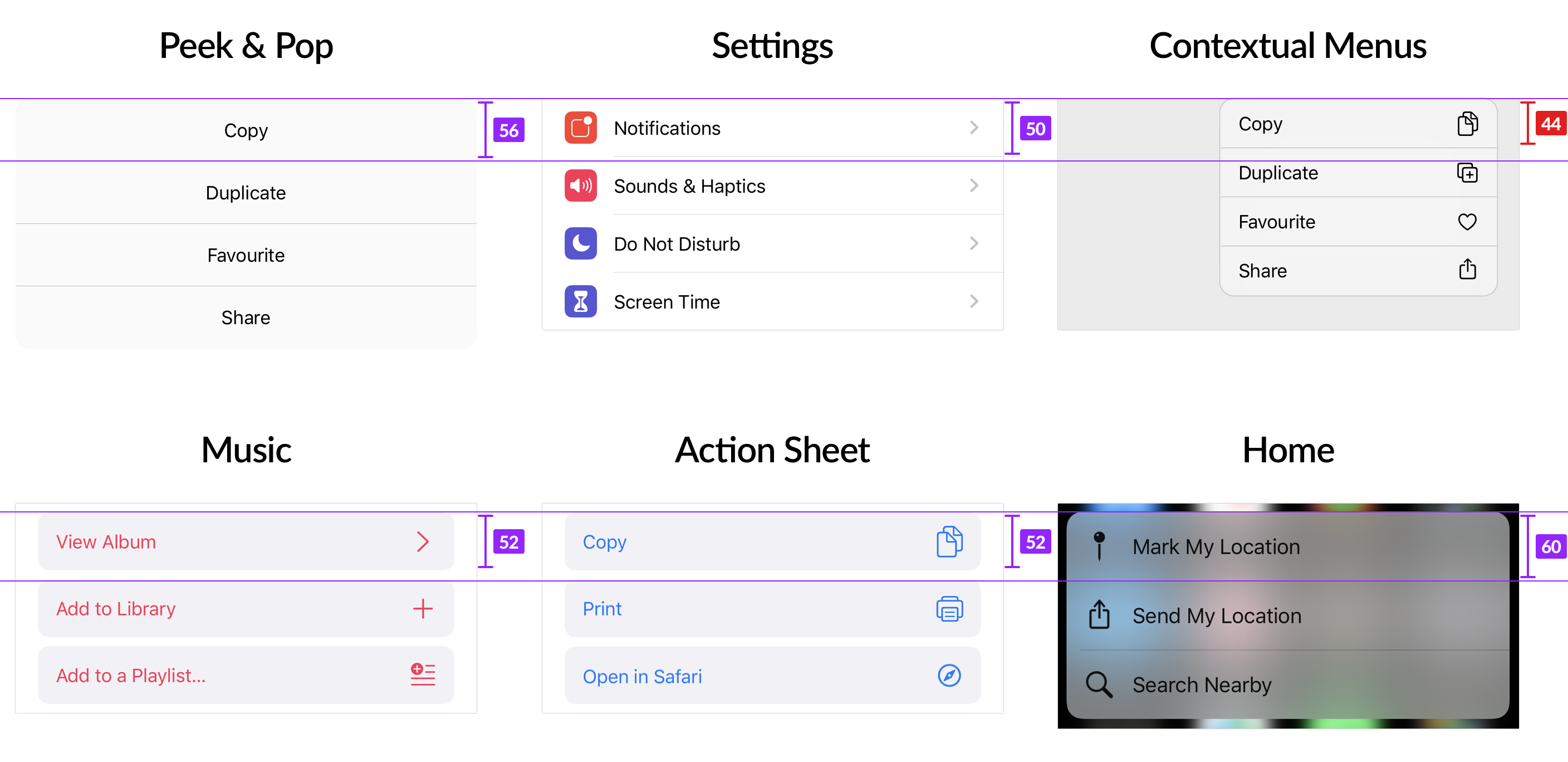
Action heights also fall at the minimum recommended 44pt, making them harder to tap than most other list items on iOS by comparison.
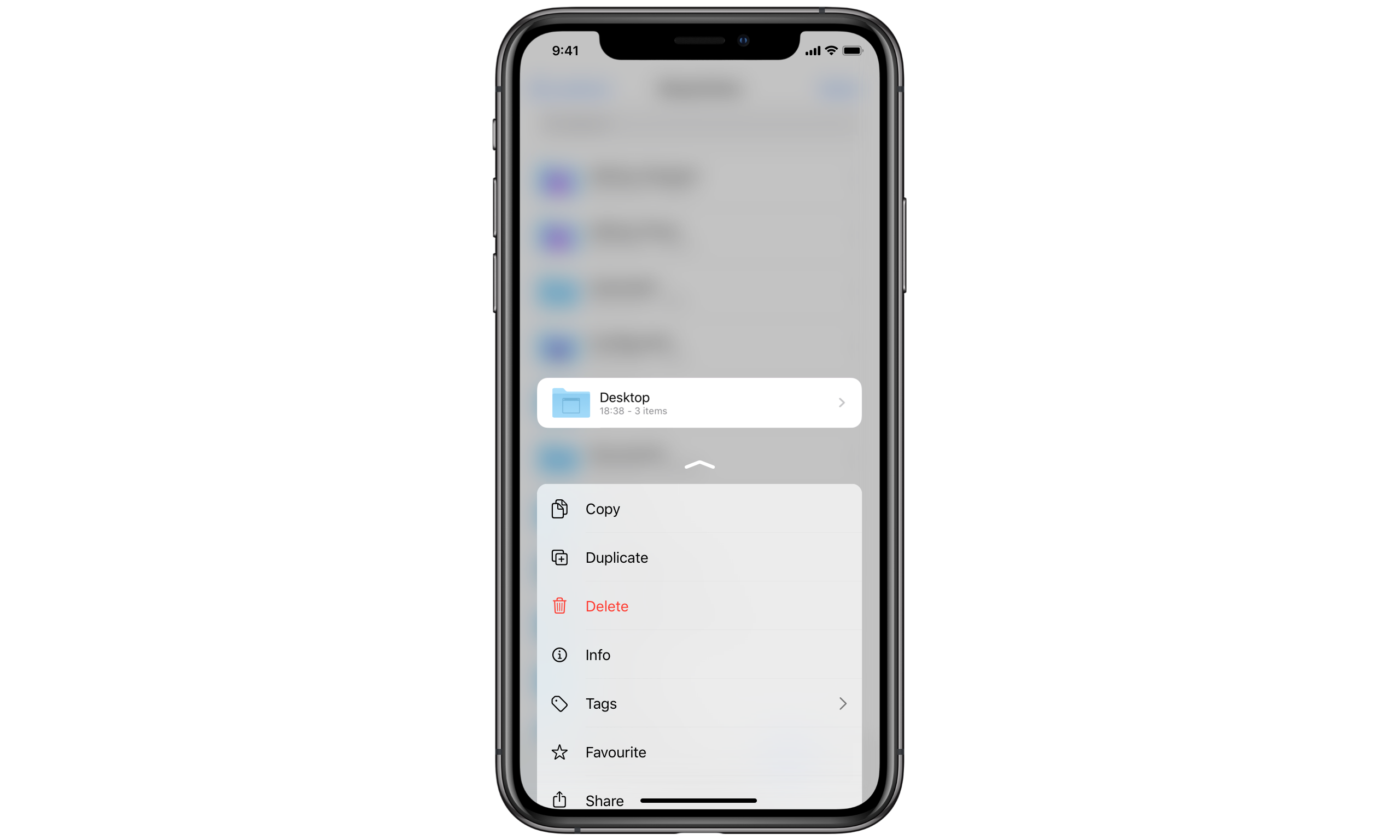
To improve the ergonomics of Contextual Menus, actions could be made full-width, taller, and consistently positioned at the bottom of the screen.
Reading Speed
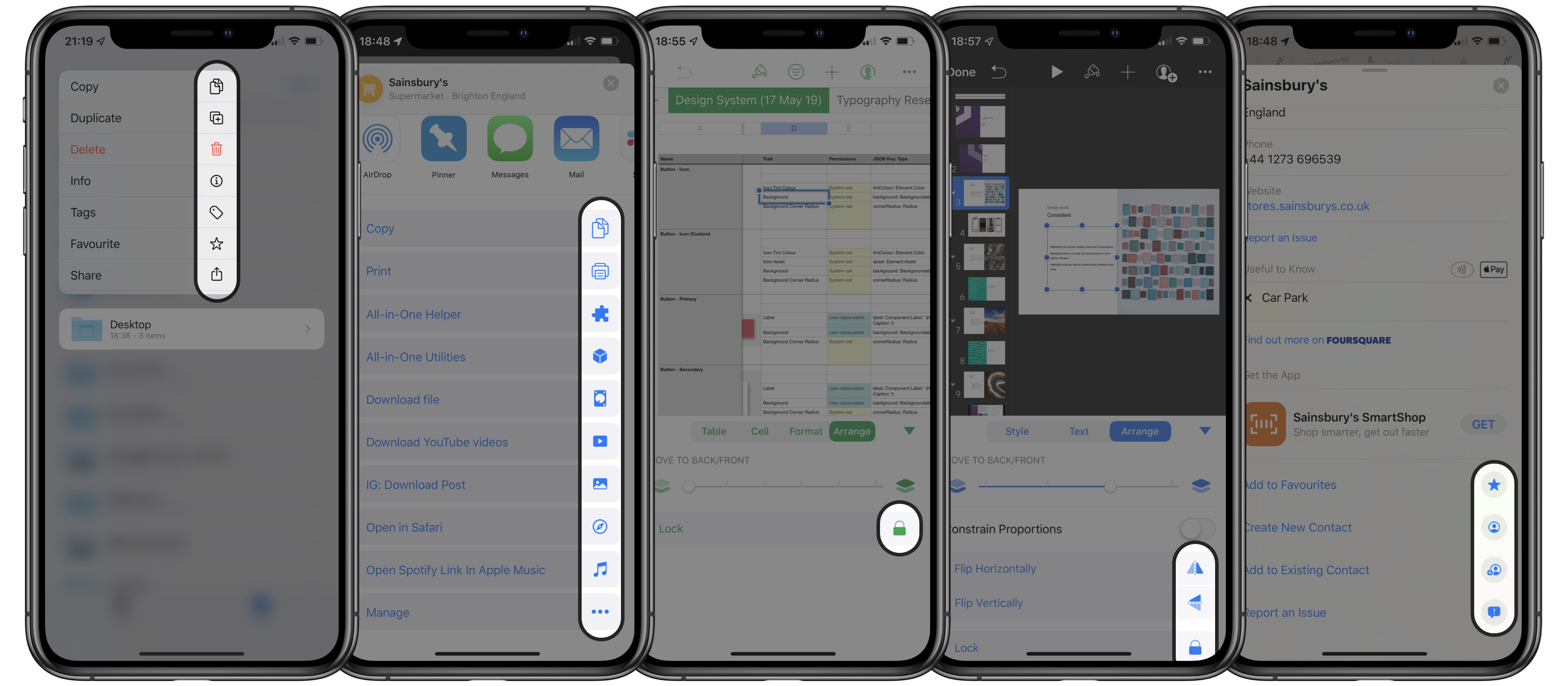
This issue impacts not only the Contextual Menu actions list, but also lists in Activity Sheets (more commonly known as Share sheets), and Apple apps like Maps and the iWork suite (Numbers, Keynote, Pages).
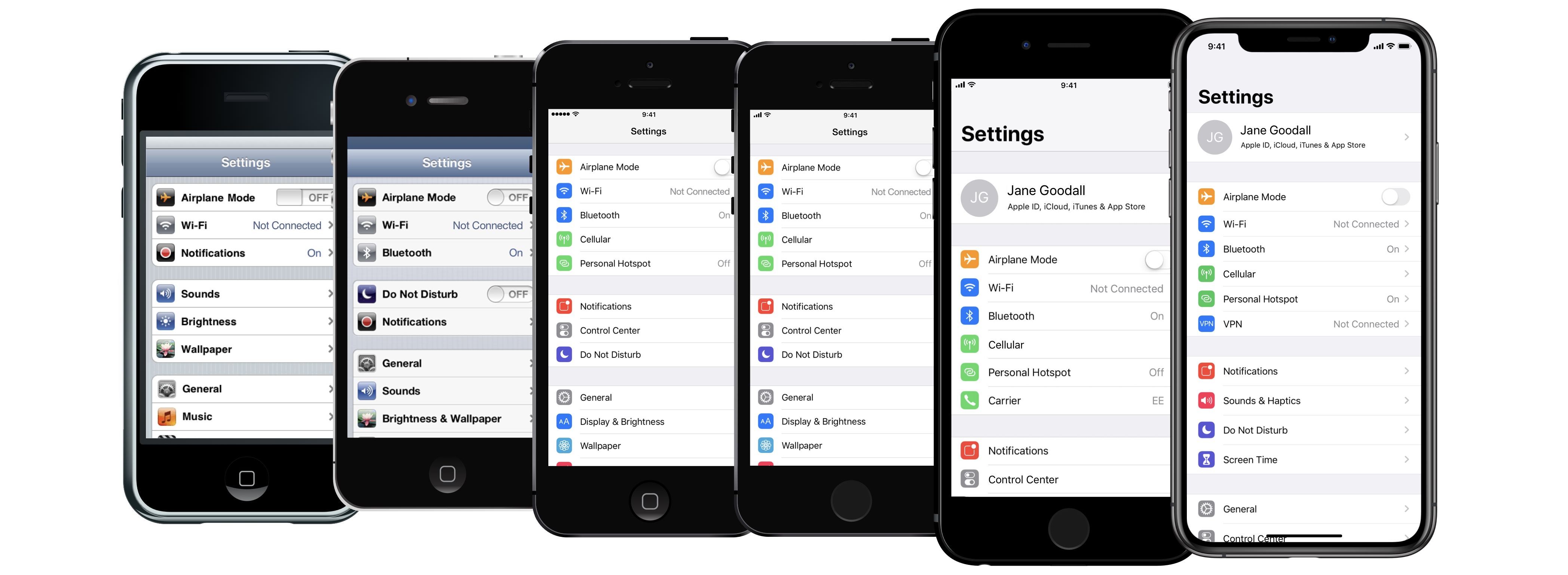
Ever since the first iOS version, long lists have included rich icons to help users find what they're looking for faster.
The layout of these icons isn't arbitrary, and it's worth unpacking why.
You should prioritise the information displayed to the user, as this helps reducing noise and finding information faster. In the Settings screen above, each list item only includes an icon, a text label, and a disclosure icon to hint at the presence of child pages. For commonly changed settings, and to save the user from an additional tap, iOS also displays the current value of a setting either as a text label or switch (e.g. WiFi, Bluetooth, VPN, etc). Notice how both the disclosure icon and setting value are less prominent than the setting name and icon.

As for the layout of icons and labels: because we can process images faster than text, and switching between the processing modes slows us down, each content type occupies its own column. This way, when we scan the icons column, we can remain in image processing mode and are thus more efficient at finding what we're looking for.
When the icon isn't enough, we switch to the slower text processing mode and confirm by reading the action's name in its text label.
When the text label is positioned next to the icon, our eyes only have to move a tiny distance to switch between them.
These eye movements are called Saccades. When you read, your eyes perform at least 3 saccades per second, moving at 9 mph, and ideally lasting 20ms or so.
To prevent disorientation from motion blur, your brain blocks out your vision until your eyes have stopped. Saccades happen without you ever noticing, and without distracting you from what you're reading.
The problem with the new Contextual Menu actions is that text label and icons are too far apart, so reading them both takes longer.
The fix is to place the icons next to the text label.
Summary
We've seen how Contextual Menus are a consistent (but not the only) way for performing actions on specific on-screen items. Adapting gracefully to touch (iOS) and pointer-based platforms (macOS).
We've also seen how some design decisions have made Contextual Menus perform worse for time-sensitive advanced users on iOS, than Peek & Pop.
Issues can be summarised to:
- Efficiency
- Ergonomics
- Reading Speed
And how to solve them, Contextual Menus could:
- Improve 3D Touch usage and gestures
- Offer full-width, bottom actions
- Place icons next to labels
I'm curious to see if the teams at Apple make some improvements to both Contextual Menus and Activity Sheets who both suffer from the reading speed problem.
Hope you've enjoyed and ping me on Twitter if you've got any thoughts on this.
[UPDATE] 15 August 2019: Apple has improved Contextual Menus activation and detail actions so they're as fast as 3D Touch (on eligible devices). Dismissal action is also significantly faster.